

Integrate with license keys
Use license keys to gate access to your software.
Integrate with email login
Let users sign in via email and validate access with the SDK.
Email login integration
If you have an existing SaaS or are building a new one, you can use Whop to direct your customers to pay and let them manage their membership. To integrate, all you have to do is adjust yourUser table to include the whop_user_id and whop_username columns.
Note
Use the
users.checkAccess method from the Whop SDK, as shown in Step 6. Pass the whop_user_id and the relevant product ID to determine whether the user can access your software.
If you would prefer to not have manage your own user table or even a database, consider building a Whop app here.
Get your SaaS live on Whop:
Create your whop
Head over to whop.com/sell: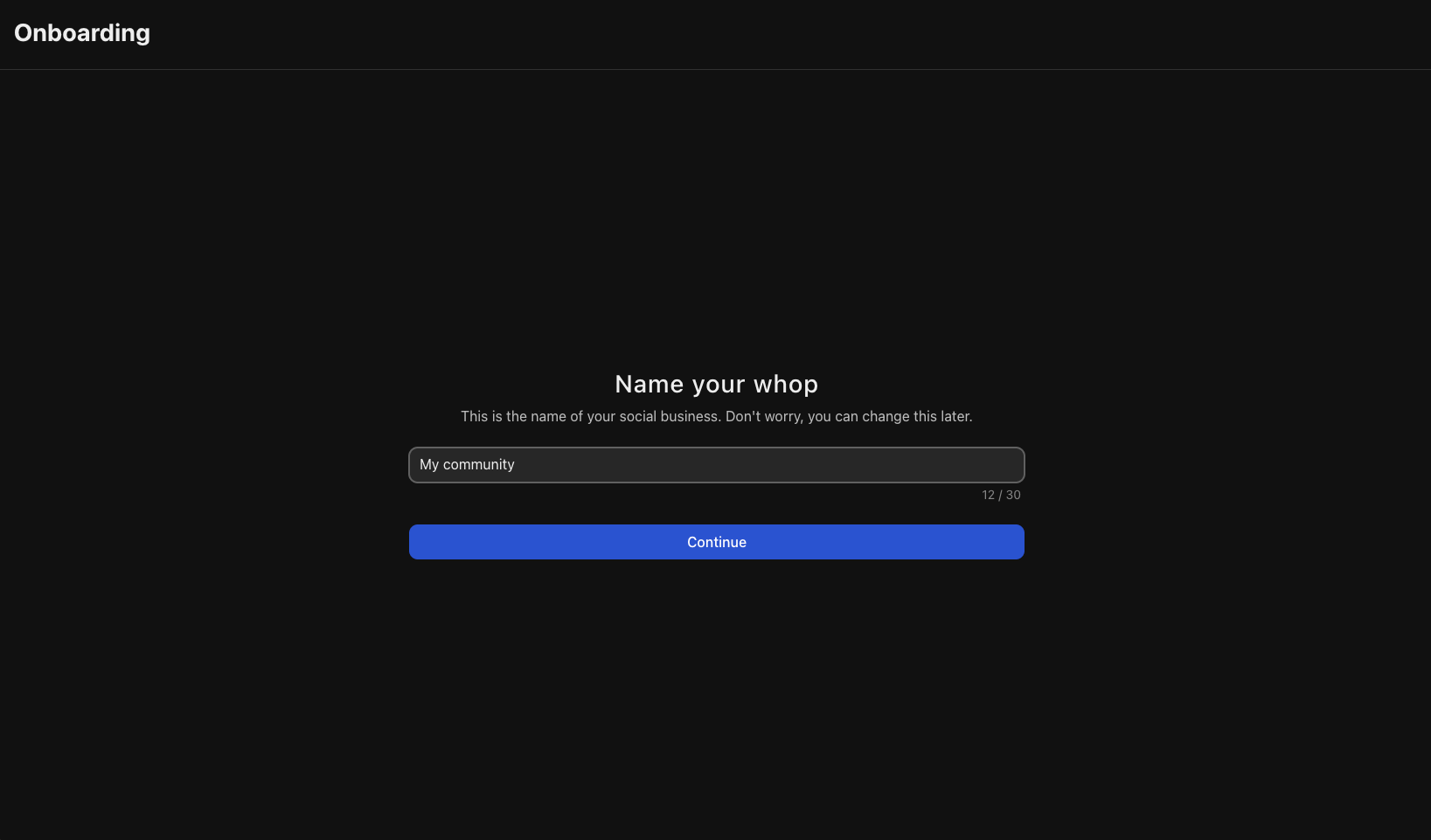
- Choose a name for your SaaS
- Select your custom URL
- Complete the basic setup
Add checkout link to your website
There are two primary ways to send customers to checkout: an embedded checkout or a hosted checkout link.Then, add the checkout element where you want it to appear. Replace If you would like to programmatically create a checkout session, you can do so with the following code:
Embedded checkout
Follow these two steps to embed the checkout on your page. First, include the Whop Checkout loader script:plan_XXXXXXXXX with your actual plan ID from the dashboard.Hosted checkout link
Alternatively, you can link customers to Whop’s hosted checkout page. You can get this link from your dashboard or generate one programmatically and link to thecheckoutUrl it returns (as shown in Step 6).Get your API key
In your dashboard, go to Developer → API keys and create an account API key. This key acts on behalf of your account (your business), so keep it server-side and never expose it in client code.
Give users a way to manage their membership
You can link users here to manage their membership: https://whop.com/@me/settings/memberships/.They can simply login with the same email and they use to access your SaaS without a password.
Design your store page and list on marketplace
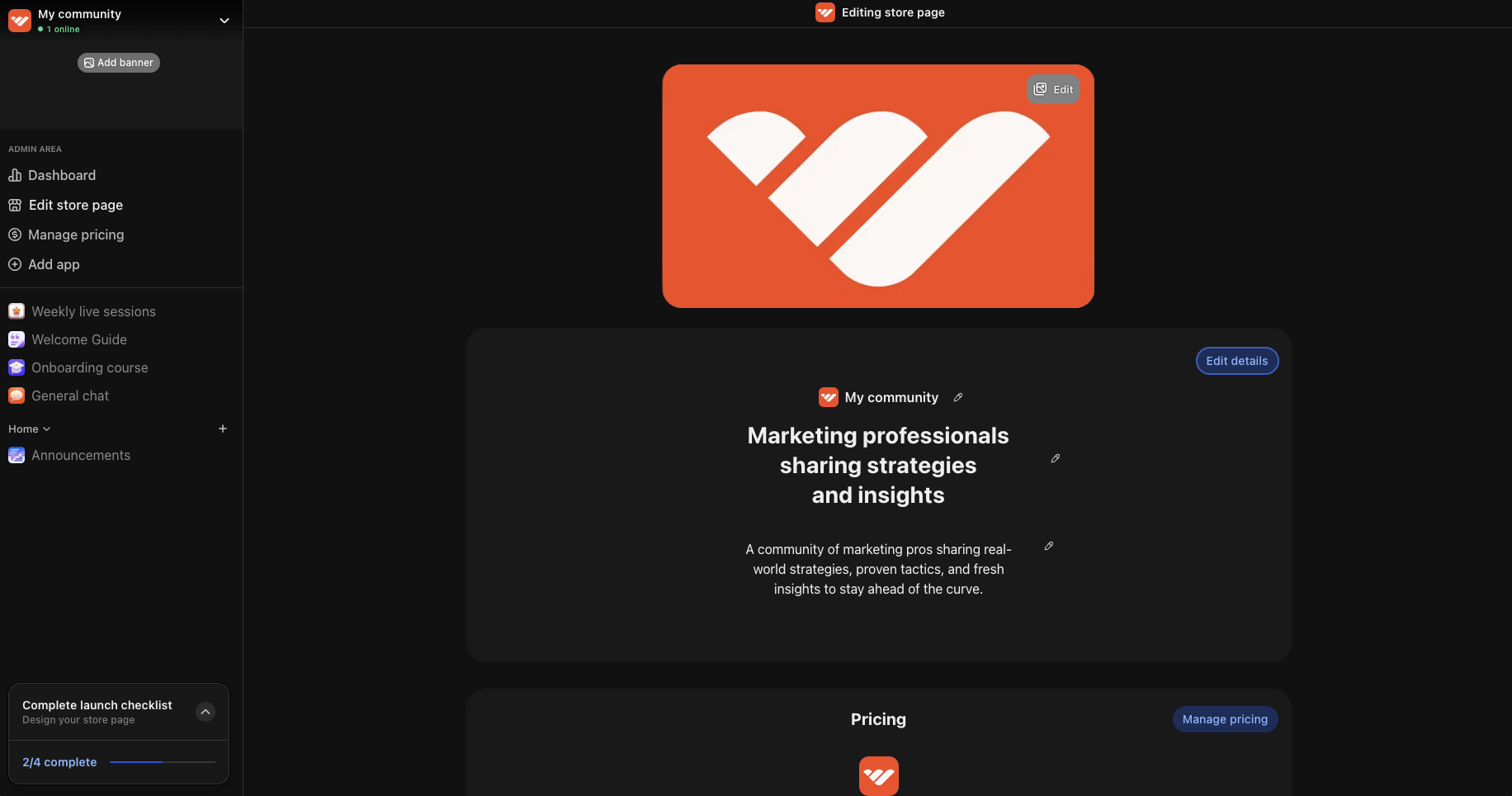
Your store page is where people can learn about your offer. Select your whop name in the top left, then select Design store page to open the editor. Select Edit details to customize:
- Choose a clear name and headline: Make it immediately obvious what your community offers and who it’s for. Examples: “Marketing professionals sharing strategies and insights” or “Fitness enthusiasts building accountability and motivation”
- Write a compelling description: Focus on the value members receive and how your community will help them achieve their goals. Highlight specific benefits like exclusive content, expert guidance, peer connections, and ongoing support
- Upload a logo: Add a clean, simple logo to your store page
- Add gallery images or video: Images of events, member success stories, or a brief welcome video help potential members get to know you and what to expect when they join
-
Select the appropriate category: This helps people discover your community when browsing Whop
License key integration
After a purchase, each user receives a unique license key that unlocks the product. Require users to enter this key before they access the product. You can also validate the current key before enabling specific application features.Getting started
- Add the software app to your whop here.
- Select configure in the new software app you added
- Add software name and download link
Validate license keys
If the license key metadata is empty, the key isn’t yet bound to a computer. Whop’s API returns status code201 to confirm that the key is valid. Your software can then grant access to the product. The API saves the metadata from the request on the license key.
Validate matching metadata
When existing license key metadata matches the metadata your software sends, Whop’s API returns a success response. This response confirms that the license key is valid. Your software can then grant access to the product. The API compares every metadata key-value pair and verifies that all fields contain the same data. To limit each user to one session, store the user’s hardware ID in the metadata as shown below: Client-sideValidate mismatched metadata
If the stored metadata doesn’t match the metadata your software sends, Whop’s API returns status code400. This response means the license key is invalid, so your software can’t grant access.
Below is example metadata that would return this error.
Client-side
Remove metadata
Users can reset their key’s metadata from their orders. To reset it through the API, send an empty metadata body in a POST request to the memberships endpoint.Next steps
Add apps to your whop
Add apps to let your users learn how to use your software, chat with
each other, and even order merch.