

How to process a refund
There are three ways to refund a customer: through their profile (quickest method), Payments, or the Resolution Center.- Customer's profile
- Payments
- Resolution Center
- Go to your Dashboard
- Use the search bar at the top right to find the customer
- Select their profile
- Scroll down to Payments and select Refund next to the specific payment
- Choose your refund amount:
- Select Refund for the full amount
- Check Partial refund and enter the amount you want to refund
Set up automatic refunds to save time
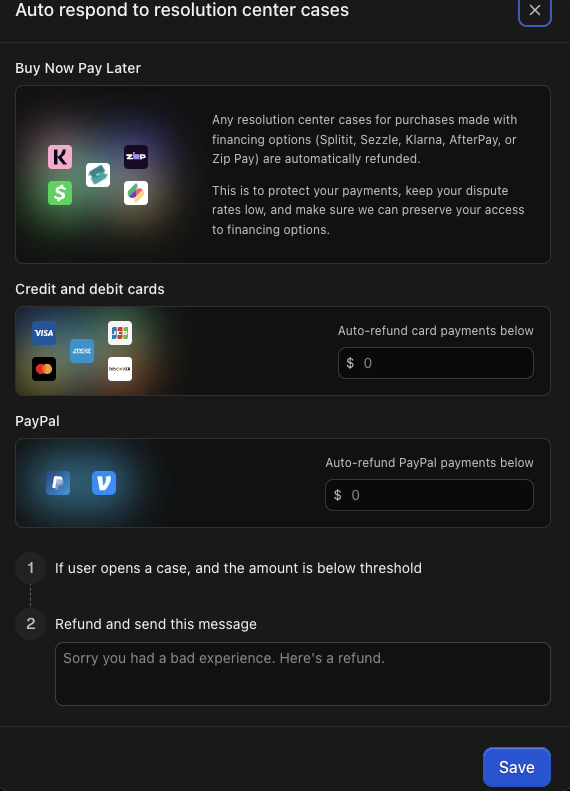
If you want to automatically handle smaller refund requests, you can set up automatic refunds for amounts under a certain threshold. To set up automatic refunds:- Go to Dashboard > Resolution Center
- Select Auto respond
- Choose your automatic refund thresholds:
- Auto-refund card payments below: Choose the maximum amount for automatic card refunds
- Auto-refund PayPal payments below: Choose the maximum amount for automatic PayPal refunds
- Add a custom message (optional) that customers will see when they receive an automatic refund
- Select Save
Resolution Center cases for purchases made with financing options are always
automatically refunded. This applies to Splitit, Sezzle, Klarna, Afterpay,
and Zip Pay. Automatic refunds help protect your payments, keep your dispute
rates low, and preserve your access to BNPL financing options. Whop handles
these refunds automatically, so you don’t need to act.
What to do if you don’t have sufficient funds
If your Whop account doesn’t have sufficient funds for a refund, you’ll need to add money to your account first.Top up your balance
To add funds to your account:- Go to Dashboard > Balances
- Select Top up +
- Enter the amount you want to add
- Choose to pay from your personal balance or select another payment method
- Select Pay
Set up minimum balance retention
If you use Automatic withdrawals, you can automatically keep money in your account for refunds:- Go to Dashboard > Balances
- Select Automatic withdrawals
- Choose your withdrawal schedule (Daily, Weekly, or Monthly) and select Continue
- Enter the minimum amount you want to keep in your account and select Continue
- Consider keeping enough to cover at least two refunds at your typical price
- Select Confirm
Frequently asked questions
How do fees work with refunds?
How do fees work with refunds?
When you refund someone, you pay back the full amount they originally paid, even though fees reduced the amount you received.For example: If a customer paid $100, you’ll refund the full $100 even though you only received around $97 after Whop and processing fees.This applies to both full and partial refunds. There are no additional fees to process a refund.
How long does it take for customers to receive their refunds?
How long does it take for customers to receive their refunds?
It depends on the customer’s bank or payment method. Customers can typically expect to see refunds in their account within 3–7 business days after Whop processes them.